Interview Copilot for Microsoft Teams: Getting Started
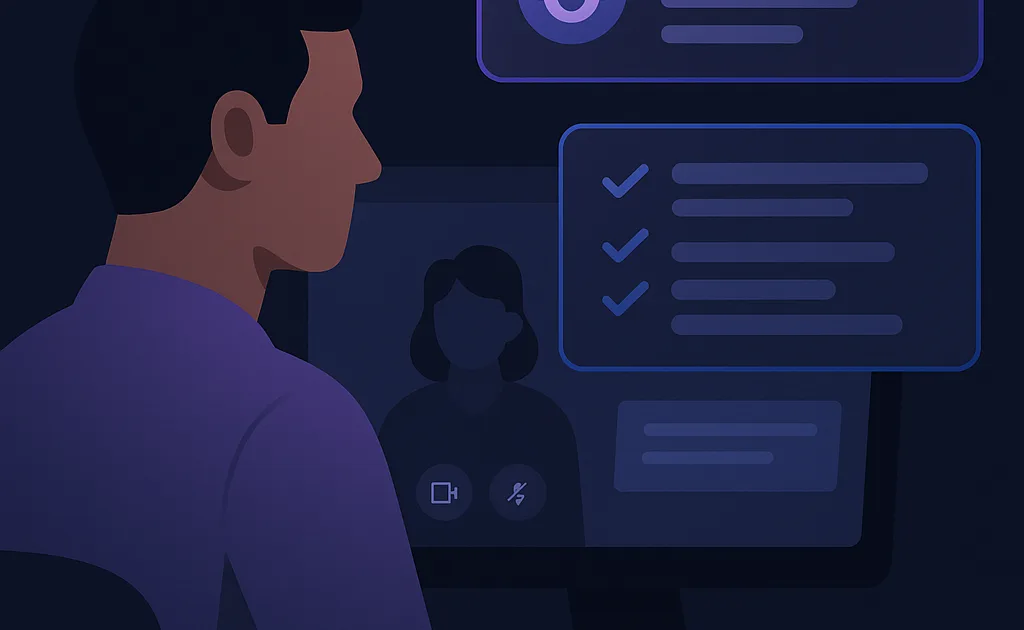
Microsoft Teams is the dominant video conferencing platform in enterprise environments, used by over 300 million monthly active users, and interviews conducted on Teams often come with additional security considerations including enterprise-managed browsers, DLP policies, and IT-administered compliance tools — making a native desktop AI copilot approach not just preferable but essential for undetectable assistance. AissenceAI's desktop application captures Teams audio at the operating system level, generates real-time answer suggestions via its AI engine, and displays them on a transparent overlay that is excluded from Teams' screen sharing, meeting recording, and Microsoft's compliance capture, operating entirely outside the Teams application and browser environment.
Enterprise Environment Considerations
Interviews on Microsoft Teams are often conducted by companies with enterprise security policies. These environments may include:
- Managed browsers — Corporate policies that audit or restrict browser extensions
- Compliance recording — Automatic meeting recording for compliance purposes
- DLP integration — Data loss prevention tools that monitor meeting content
- Endpoint security — Software that monitors application activity
AissenceAI's native desktop overlay operates outside all these layers because it does not modify Teams, does not install as a browser extension, and uses OS-level screen capture exclusion that even compliance recording tools respect. Read the safety documentation for technical details.
Setup for Teams Desktop App
- Install AissenceAI desktop application
- Open Microsoft Teams (desktop app or browser — both work)
- Launch AissenceAI and select Teams as your platform
- The app automatically identifies Teams audio output and begins monitoring
- Position the overlay near your webcam for natural viewing
Audio Capture from Teams
AissenceAI uses system-level audio capture (WASAPI on Windows, Core Audio on macOS) to intercept Teams' audio output. This works identically whether you use the Teams desktop app, Teams in a browser, or the new Teams 2.0 client. No plugins, add-ins, or extensions are required for Teams itself.
Teams-Specific Best Practices
- Use the Teams desktop app — It provides more reliable audio output than the browser version
- Disable Teams background effects — These consume GPU resources that are better allocated to the AI overlay
- Turn off Teams notifications — Prevent popup notifications from overlapping with the AI suggestions
- Check audio device settings — Ensure Teams and AissenceAI are using the same audio output device
Testing Before Your Interview
Schedule a test Teams call with a friend to verify audio capture and overlay visibility. Share your screen during the test to confirm the overlay is invisible. Follow the comprehensive preparation checklist, and practice with AI mock interviews. For other platform setups, see the Zoom guide and Google Meet guide.
The Complete Interview copilot for microsoft teams Process
Understanding the full interview process is critical to your success. Most candidates only prepare for the technical questions, but the top performers understand every stage and what evaluators are looking for at each step. This comprehensive guide covers everything from the initial phone screen through the final offer negotiation.
The interview process at top technology companies typically spans 3-6 weeks and includes 5-8 rounds of evaluation. Each round tests different competencies, and failing any single round — regardless of how well you perform in others — typically results in rejection. This is why balanced, comprehensive preparation across all domains is essential.
Interview Rounds: What to Expect
Round 1: Recruiter Phone Screen (30 minutes)
The recruiter screen is a motivation and culture fit check, not a technical assessment. Be ready to articulate: why this company specifically (not just any tech company), your career narrative (how your experience led you here), and your compensation expectations. Vague answers about "great culture" are red flags. Research the company's recent news, products, and challenges beforehand.
Common recruiter questions: "Tell me about yourself," "Why are you interested in this role?" and "What are your salary expectations?" For salary questions, deflect to a later stage: "I'm focused on finding the right fit — I'm confident we can agree on fair compensation once I'm deeper in the process."
Round 2: Technical Phone Screen (45-60 minutes)
The technical phone screen typically features 1-2 algorithm or coding problems at medium difficulty level. The most common format is a shared coding environment (CoderPad, HackerRank) where you write working code. Think aloud throughout: interviewers evaluate your problem-solving approach as much as the final answer. Start with brute force, then optimize. Always analyze time and space complexity.
Rounds 3-5: On-site or Virtual Loop
The main interview loop consists of multiple rounds covering: algorithm/coding (2-3 rounds), system design (1-2 rounds), and behavioral/leadership (1-2 rounds). Prep for all three domains with equal intensity. Candidates who focus exclusively on coding and neglect system design or behavioral rounds fail predictably.
Preparation Timeline
| Week | Focus Area | Daily Time | Resources |
|---|---|---|---|
| Week 1-2 | Data structures & algorithms fundamentals | 2-3 hours | LeetCode Easy/Medium, AissenceAI practice |
| Week 3-4 | System design + behavioral stories | 2-3 hours | System design primers, STAR story bank |
| Week 5-6 | Mock interviews + company-specific prep | 2-4 hours | AissenceAI mock interviews, Glassdoor |
Compensation and Offer Strategy
Top tech companies offer highly competitive total compensation packages. Base salary is often the smallest component — stock options (RSUs), performance bonuses, and comprehensive benefits can double or triple your effective compensation. Before negotiating, research market rates on levels.fyi and understand the company's equity vesting schedule (typically 4-year vesting with 1-year cliff).
Negotiation strategy: Always have competing offers ready. Even an offer from a smaller company gives you leverage. State your target with evidence: "Based on levels.fyi data and my competing offer from [Company], I'm targeting $X in total compensation."
Insider Tips from Recent Candidates
- Signal-to-noise ratio: Interviewers conduct 10-15 interviews per week. Make your answers memorable with specific, quantified examples.
- Communication over code: At senior levels, communication quality often outweighs coding speed. Think aloud constantly.
- Ask genuine questions: Prepare 5+ specific questions about the team, current projects, and growth path. Generic questions signal low interest.
- Follow up: Send a personalized thank-you email to each interviewer within 24 hours, referencing specific discussion points.
Frequently Asked Questions
How long does the interview process take?
Typically 3-6 weeks from first contact to offer. The process can be accelerated to 2 weeks if you have competing offers and communicate urgency. Inform your recruiter upfront if you have a decision deadline.
How many times can I apply if I fail?
Most top companies have a 6-12 month waiting period after rejection before you can reapply. Use this time to address gaps in your preparation — failed candidates who improve their skills in the interim often succeed on their second attempt.
Should I use AI interview assistance tools?
Using AI mock interview platforms for preparation is universally recommended. For live interviews, AissenceAI's stealth desktop app provides real-time assistance that is invisible to screen recordings and interviewers.
Start Your Preparation Today
The best time to start preparing is 6-8 weeks before your target interview dates. Use AissenceAI's mock interview platform for unlimited practice sessions with AI feedback. For real-time live interview assistance, download the AissenceAI desktop app. Check pricing for free and premium options.